
I have tons of books on programming and many of them are accompanied by CD with the book in PDF format. A bright idea struck me – why carry around ton of bricks, when I can load electronic version onto my Kindle Fire? And it worked quite nicely, though a (very) little work required beforehand
First of all I got a better PDF reader app. Even though Kindle app supports PDF – it does very little besides page flipping. If a book has wide margins (most textbooks do) text looks really small, sometimes unreadable. ezPDF Reader on the other hands is highly customizable. Here’s what need to be done in order to make PDF a comfortable read on Kindle Fire:
- In Settings: lock screen orientation to Landscape
- In Settings: set page scrolling type to Vertical
- While Reading: Using pinch-zoom adjust text to comfortable size
- While Reading: Tap menu and select “Lock horizontal scroll bar”
The result is comfortably sized text with pages moved by a vertical scroll.
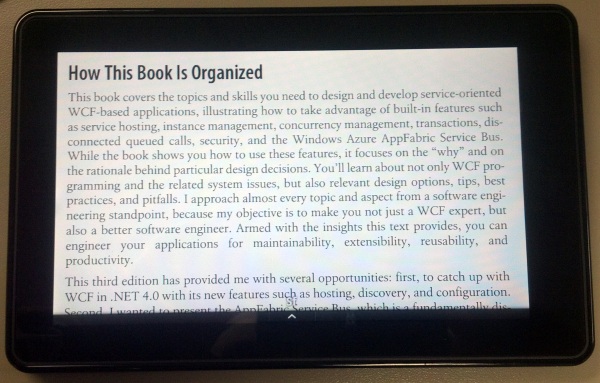
UPDATE: New version of ezPDF makes reading even easier, you don’t even have to go thru steps described above. Version 1.7.2.0 adds “crop” feature – so you can crop those wide margins, making the text fill full screen. This way you can read PDF in a portrait mode, like God intended and more naturally “flip” the pages instead of scrolling. Here is a screenshot of what cropped PDF book looks like on Kindle Fire.
Does the ezPDF software lock the zoomed view to prevent the PDF from moving when attempting to scroll down the page? For example of what I am talking about is at :50 in this video.
Yes, using either “Lock horizontal scroll bar” or “crop” option (see description above) horizontal movement is restricted, so you can safely scroll vertically-only.
Thanks for the information. When I use the crop feature it does not seem to take up the whole available space as it does when I use the directions you first gave for landscape mode. This mode has text that takes up the whole screen area. The crop feature leaves some black space above and below the text. Is there something else to do to get the whole area full of text in the portrait mode? Thanks
@Barry, funny I never noticed that space before. I guess the proportions of the full rectangle with cropped text are different from screen rectangle. You can play around with crop size, trying to achieve compromise between text size and extra black space or accept it as a trade off of portrait mode.
I have a pdf that I sent to my KF email and it’s in my Docs, but I haven’t been able to figure out how to use ezPDF Reader Pro to open. Would you please provide some instructions. TIA
@Monica, after starting ezPDF just locate your document (for example by clicking ALL PDF button – it will list all folders that contain PDF files – tap the folder with your file (not sure what it will be, I never used email service, most likely it’s “Documents”) and then tap PDF file you want to read.
By the way, if you use ezPDF – you don’t have to email the files to your Kindle, you can simple transfer them directly from your PC via USB cable, it’s easier, faster and you can put them into any folder you want this way.
@Yuriy, I did look under the All PDF and there is nothing listed there, it’s just blank. On the Kindle the file is listed in my Docs within both Cloud and Device and I can read on my Kindle.
Second, I used the email conversion process because the PDF came out smoother and better quality, but it doesn’t orientate properly…it’s always at a 90 degree angle no matter how I turn the Kindle! Initially I used the Send To Kindle app on my PC but the quality of the PDF is so poor I went on the forum and found your post so I bought the ezPDF Pro app, but I can’t find the PDF to open.
I will try and transfer the file directly via USB cable and see what happens.
Thank you for all your help.
@Monica, this is exactly what I do with my PDFs. I think conversion may screw the document especially if it has specific formatting, images and diagrams. Using ezPDF I and some methods described above I can pretty much read original PDFs without any conversions. Hopefully it will work for you too.
I have the exact problem that Monica mentioned-I have a PDF in my cloud and on the device, but ezPDF, which I just purchased, does not find this item. Now I’m not sure of the best way to get PDFs to my kindle, I would prefer to use email NOT USB.