Ever wished your WebDataGrid could have Table Layout = Auto like old UltraWebGrid? Then it could automatically resize columns width to data width with respect line breaks. Well, it can, and in style (pan intended). Thanks to Infragistics tech-support for starting me in the right direction – here’s first 2 steps that need to be taken:
- Don’t set column width property – either default or for specific column either in server-side code or declaratively and don’t set grid’s width property
- Open your grid CSS class file, it’s located at ~/ig_res/[Your Style Name]/ig_dataGrid.css.
Locate tbody.igg_[Your Style Name]Item>tr>td class and add one more line at the end: white-space:nowrap. Here is an example with Office 2007 Style:
tbody.igg_Office2007BlueItem>tr>td
{
background-color:White;
border-right:solid 1px #D0D7E5;
border-bottom:solid 1px #D0D7E5;
padding:2px 5px 2px 5px;
height: 18px;
overflow: hidden;
text-align:left;
vertical-align:middle;
white-space:nowrap;
}
Run your project – you will get a nicely autoresized grid columns:

But there’s one problem with this approach. Continue reading 'Auto-size columns in Infragistics WebDataGrid'»
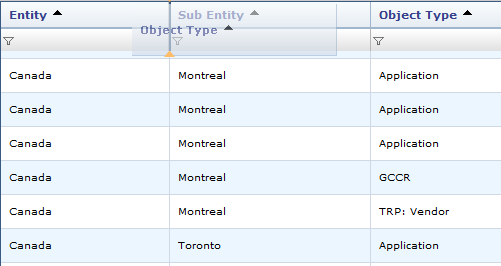
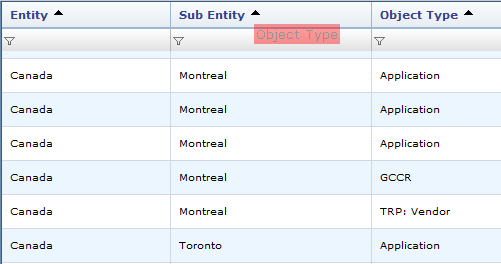
Infragistics Aikido WebDataGrid offers a nice built-in ColumnMoving behavior. When enabled – it allows user to drag columns to change their order:

But what if you want to keep this behavior and add your own custom column drag-and-drop? For example to create your own column grouping, since WebHierarchicalDataGrid doesn’t handle grouping well.
In this post I will describe a simple technique how to both keep behavior shown above and implement custom column drag-and-drop:

Continue reading 'WebDataGrid: Custom drag and drop columns when Colum Moving behavior is enabled'»
ASP.NET, HTML/CSS, Infragistics, Javascript, New Stuff, VB.NET
|
cool, design, extending, feature, solution, trick
I had high hopes for Infragistics Web Hierarchical Data Grid control. Especially in NetAdvantage 10.3 release (current as of this post). Control from Aikido Framework, build on AJAX from ground up, lightweight and fast – I was really excited.
Unfortunately it didn’t turned out exactly as I expected.
First – WHDG cannot bind to a flat ADO.NET data table. Why, you ask, I need to bind flat data to an hierarchical control? Well, it’s the only grid in Aikido that supports OutlookGroupBy mode and I need to be able to group my flat data. But attempt to bind WHDG to DataTable throws an enigmatic InvalidOperationException without giving any clue as why. There’s a workaround – to create a dummy DataSet, add the table to it and bind control to the dataset – but that’s just silly. And that’s not the worst of it. Continue reading 'WebHierarchicalDataGrid: Not ready for prime-time'»
In the previous post I described how using QuickPages property and a bit of creative HTML enhanced pager for Infragistics UltraWebGrid could be created. The only problem with QuickPages – the pager in this mode displays inconsistent number of page links. For example if you set QuickPages property equal 5, the pager will display from 5 page links (when you’re at the beginning or at the end of the grid) to 11 (when you’re in the middle). If you want that number to be consistent, you have to draw the page links yourself. Which turned out is surprisingly easy. Continue reading 'Displaying consistent number of links in Infragistics UltraWebGrid Pager'»
When you design columns for UltraWebGrid, one of the settings available to you is Column Type. For example you can set it to Button, and all cells within the column will render and behave as HTML buttons. Other options available such as Check Box or Hyperlink.
But what if you want some of the column cells to be of a different type? For example some of cells aren’t supposed to be links, but plain text instead? The solution is to set Column Type of those cell thru code. Consider following example:
Protected Sub xmyGrid_InitializeRow(ByVal sender As Object, ByVal e As RowEventArgs) Handles xmyGrid.InitializeRow
If e.Row.Index > 0 Then
e.Row.Cells.FromKey("LINK_CELL).TargetURL = "http://mysite.com?ID=" & e.Row.Cells.FromKey("LINK_ID)
Else
e.Row.Cells.FromKey("OBJ_NAME").Column.Type = ColumnType.NotSet
End If
end sub
Above is a handler for UltraWebGrid’s InitializeRow event. It checks if a row is a first row in the grid and if so – sets its column type to “NotSet” effectively removing “Hyperlink” type set at design time. And even though it references type of entire column – the change applies only to the current cell.
Internet Explorer has a well known proprietary modal dialog window that can be opened using showModalDialog DOM command. While it is not a good idea to use browser-specific functionality, for many it’s a convenient way to display a modal window and return result back to the parent.
Modal Dialog is designed to display data, accept user input and close window, returning the input back to the parent. It is not meant for postbacks, if you try initiating postback in Modal Dialog, all kinds of weird stuff could happen – from opening postback in a new window to JavaScript errors.
But there is an easy fix for that. If you include following line:
<base target="_self"></base>
inside of your page header in HTML source, e.g.:
<head>
<title>My Page</title>
<base target="_self"></base>
</head>
modal dialog will be able to successfully postback to itself.

If you still use Visual Studio .NET 2003 (I still do for some older .NET 1.1 projects) you may experience following situation:
- You have an ASP.NET Web project that is controlled by Visual SourceSafe
- While opening the project Visual Studio 2003 hangs, stops responding to mouse clicks and keystrokes.
Fortunately there is a quick fix to that.
Continue reading 'Visual Studio 2003 hangs trying open ASP.NET project from Visual SourceSafe'»
Rounded corners add nice touch to look and feel of a Web Page. User interface that employs rounded corners looks more streamlined, more ergonomic. Often to achieve that effect images are used, but this approach doesn’t allow quick style update and has other issues. Fortunately there is another way:
Compare 2 following DIVs:


First uses pretty basic CSS/HTML:
<style type="text/css">
.normal
{
border: solid 1px blue;
background-color:yellow;
height:100px;
width:200px
}
</style>
<div style="text-align:center">
<div class="normal">
</div>
Let’s take a closer look at the second: Continue reading 'Easy rounded corners in pure HTML/CSS'»
When I needed to modify background of Infragistics GroupByRow element using CSS class from an external stylesheet I thought – no problem. Link stylesheet to the page, modify grid’s property GroupByRowStyleDefault by setting CssClass:

And that should do it. Well, it didn’t work, the background hasn’t changed so I looked at page HTML source.
Continue reading 'Styling elements of Infragistics UltraWebGrid with CSS Classes'»

This JavaScript VectorGraphics library provides graphics capabilities for JavaScript: functions to draw circles, ellipses (ovals), oblique lines, polylines and polygons (for instance triangles, rectangles) dynamically into a webpage. Usage of this Vector Graphics library should be easy even if you don’t have JavaScript experience
This is very cool. This javascript graphics libary allows you to draw pretty much any shape, image or text directly into HTML without 3rd party plug-ins like Flash. Speed is amazing and it’s cross-browser compatable too. Get it at http://www.walterzorn.de